Task Assignment and Tracking Workflows: TeamMap Operations Guide
Assign, track, and verify security tasks with TeamMap. Covers task creation, priority assignment, completion verification, and follow-up procedures.
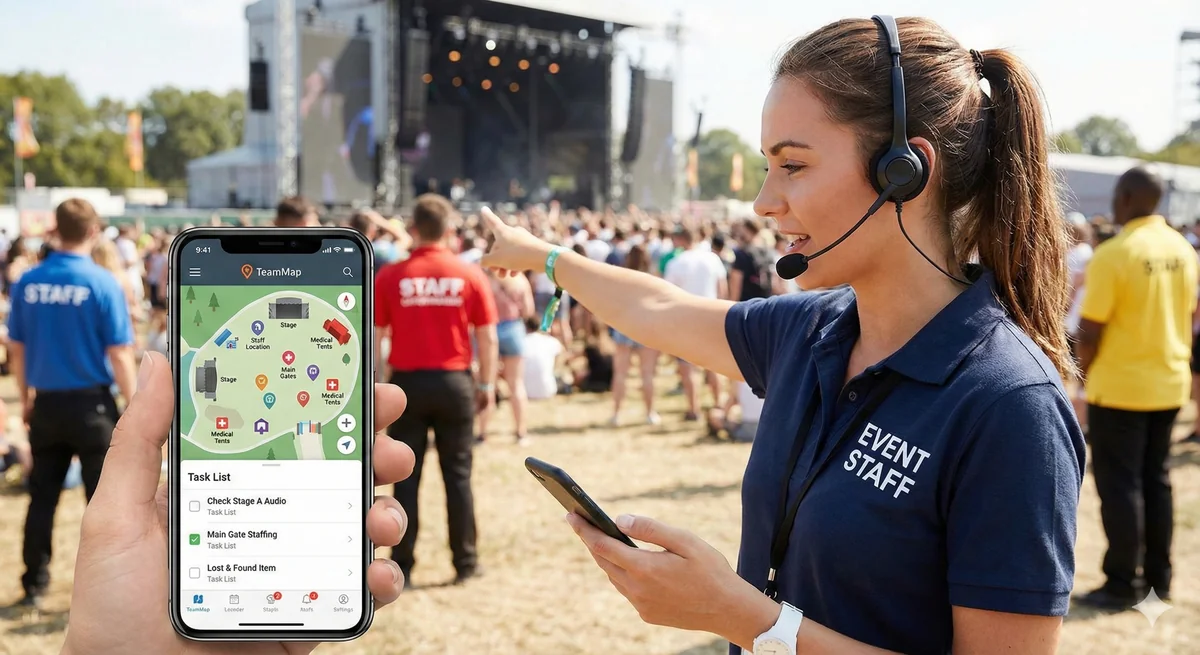
Security operations involve more than patrols—there are access requests to handle, incidents to investigate, maintenance to report, and one-time tasks to complete. TeamMap's task system ensures nothing falls through the cracks.
TeamMap tasks enable assignment, tracking, and verification of security work items. This guide covers task creation, priority management, completion workflows, and follow-up procedures.
Task Management Overview
Tasks vs. Regular Patrols
| Regular Patrol | Task |
|---|---|
| Recurring daily routine | Specific one-time or scheduled item |
| General observation | Specific action required |
| Standard checkpoints | Custom location/requirement |
| Time-based completion | Action-based completion |
Types of Security Tasks
- Access requests: Unlock doors, grant temporary access
- Escort duties: Accompany visitors, contractors
- Inspections: Check specific equipment, areas
- Incident follow-up: Gather additional info, check status
- Maintenance reporting: Document issues for facilities
- Special events: Setup, monitoring, breakdown
- Administrative: Reports, inventory, documentation
Creating Tasks
Task Components
| Field | Description | Example |
|---|---|---|
| Title | Brief description | "Unlock Loading Dock B" |
| Description | Detailed instructions | "Unlock at 0700 for delivery, re-lock at 0900" |
| Priority | Urgency level | High, Medium, Low |
| Due Date/Time | When task must be done | "2026-07-15 07:00" |
| Location | Where task is performed | Loading Dock B |
| Assigned To | Responsible guard/team | Morning Shift |
| Verification | How completion is confirmed | Photo required |
Creating a Task
- Open TeamMap dashboard
- Navigate to Tasks section
- Click "Create Task"
- Enter task details
- Set priority and due date
- Assign to guard or team
- Configure verification requirements
- Add any attachments (instructions, photos)
- Save and publish
Task from Incident
Incidents often generate follow-up tasks:
- Link task to original incident
- Pre-fill relevant details
- Track resolution progress
- Include in incident closure
Priority Management
Priority Levels
| Priority | Response Time | Examples |
|---|---|---|
| Critical | Immediate | Active threat, safety hazard |
| High | Within 1 hour | Suspicious person, access emergency |
| Medium | Within shift | Escort request, inspection |
| Low | Within 24-48 hours | Documentation, non-urgent maintenance |
Escalation Triggers
- Task not acknowledged within threshold
- Task past due
- Priority changed to critical
- Guard unable to complete
Task Assignment Workflow
Assignment Methods
| Method | Use When | Process |
|---|---|---|
| Direct assignment | Specific guard needed | Assign to individual |
| Team assignment | Any qualified person | Assign to team/shift |
| Self-assignment | Guards choose tasks | Post to task board |
| Template-based | Repeat the same job | Spin up from a task template |
Task Lifecycle
- Created: Task entered into system
- Assigned: Guard notified
- Acknowledged: Guard confirms receipt
- In Progress: Guard working on task
- Completed: Guard marks done with verification
- Verified: Supervisor confirms completion (if required)
- Closed: Task archived
Task Completion
Verification Methods
| Method | How It Works | Best For |
|---|---|---|
| Self-report | Guard marks complete | Low-risk tasks |
| Photo required | Must attach photo | Visual confirmation |
| GPS verification | Must be at location | Location-specific tasks |
| NFC scan | Must scan tag at location | High-security tasks |
| Signature | Third party signs | Deliveries, escorts |
| Supervisor approval | Supervisor reviews and approves | Critical tasks |
Completion Notes
Guards should include:
- What was done
- Any issues encountered
- Follow-up needed
- Who was contacted/involved
Managing Task Workload
Task Dashboard
Supervisors can view:
- All open tasks by site
- Overdue tasks
- Tasks by assignee
- Task completion rates
- Average completion times
Balancing Workload
- Review task distribution across guards
- Consider patrol duties when assigning tasks
- Allow buffer time for unexpected tasks
- Don't overload any single guard
Recurring Tasks
For regular tasks, create recurring schedules:
- Daily equipment checks
- Weekly fire extinguisher inspections
- Monthly lighting audits
- Quarterly emergency supply inventory
Key Takeaways
- Tasks capture specific work items beyond regular patrols
- Priority levels ensure urgent items get immediate attention
- Verification methods confirm tasks are actually completed
- Link tasks to incidents for complete tracking
- Monitor workload to avoid guard overload
Continue Reading
Video Analytics for Security: Beyond Basic Surveillance
AI-powered video analytics can detect intrusions, count people, and identify anomalies. This guide covers practical applications and integration strategies.
Florida Security Guard License Application: Division of Licensing Guide
Navigate the Florida Division of Licensing application process for security guards, including background checks, training providers, and processing timelines.
The 10 Best Security Guard Management Software Solutions in 2026
From enterprise platforms to mobile-first apps, we review the top security guard software options. Honest assessments of features, pricing, and who each solution works best for.