Visitor Management Kiosk Setup: TeamMap Self-Service Check-In
Deploy TeamMap's visitor kiosk for self-service check-in. Covers kiosk setup, host notifications, badge printing, and visitor log management.
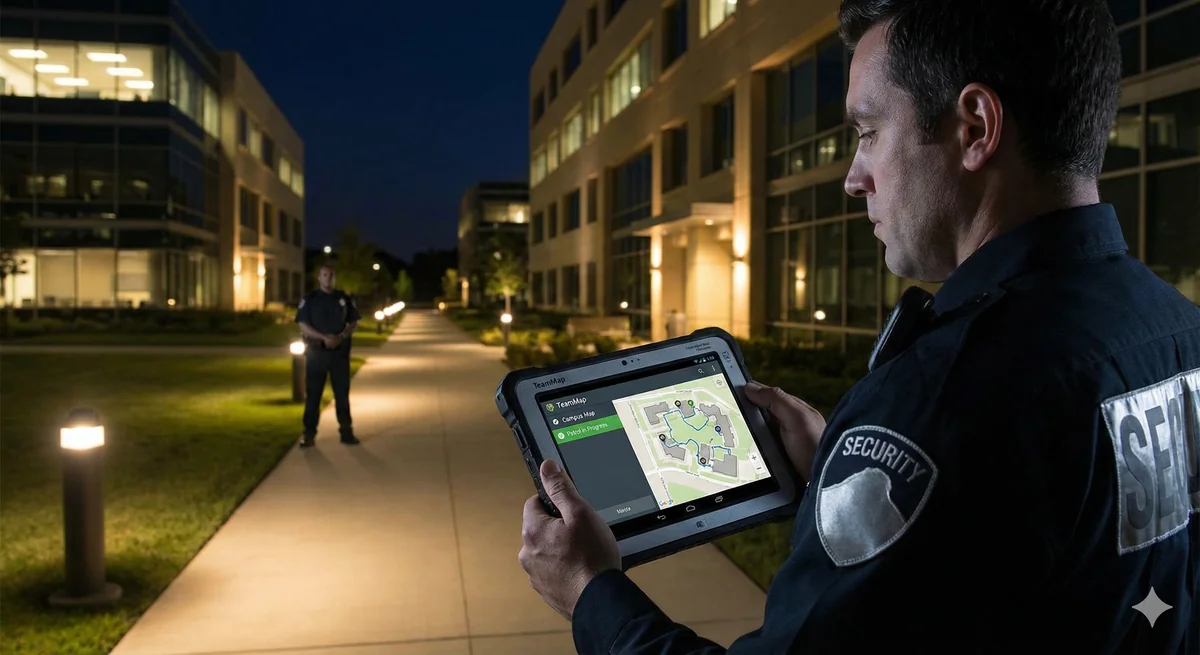
A visitor management kiosk transforms how guests check in to your facility. TeamMap's kiosk app turns any tablet into a self-service check-in station—capturing visitor data, notifying hosts, and maintaining a complete visitor log without tying up security personnel.
TeamMap's visitor kiosk enables self-service guest check-in with host notifications and automatic logging. This guide covers hardware setup, configuration, and visitor management procedures.
Kiosk Overview
What the Kiosk Does
- Captures visitor information (name, company, host)
- Takes visitor photo
- Prints visitor badge (if configured)
- Notifies host of arrival
- Logs check-in time and purpose
- Handles check-out
- Maintains searchable visitor log
Benefits
| Traditional Sign-In | TeamMap Kiosk |
|---|---|
| Paper log (illegible) | Digital records (searchable) |
| Call host manually | Automatic notification |
| Handwritten badge | Professional printed badge |
| No photo record | Photo captured |
| Guard tied to desk | Self-service |
| Checkout often skipped | Tracked checkout |
Hardware Setup
Required Equipment
| Item | Requirements | Recommendations |
|---|---|---|
| Tablet | iOS 13+ or Android 10+ | iPad 10.2" or larger |
| Stand | Secure, adjustable angle | Lockable kiosk enclosure |
| Power | Constant power source | PoE or concealed cable |
| Network | WiFi or ethernet | Dedicated network preferred |
| Badge printer | Optional | Dymo or Brother label printer |
Physical Placement
- Visible from main entrance
- Accessible height (consider wheelchair users)
- Good lighting for photo capture
- Near power outlet
- Secure mounting to prevent theft
- Clear signage directing visitors
Kiosk Mode Setup
Configure the tablet for kiosk operation:
iPad (Guided Access)
- Install TeamMap Kiosk app
- Settings → Accessibility → Guided Access → On
- Open TeamMap Kiosk app
- Triple-click Home/Side button to start Guided Access
- Set passcode to exit
Android (Lock Task Mode)
- Install TeamMap Kiosk app
- Enable device admin for app
- Configure lock task mode in settings
- App will launch automatically on boot
Kiosk Configuration
Basic Settings
| Setting | Options | Recommendation |
|---|---|---|
| Company logo | Upload image | High-res PNG |
| Welcome message | Custom text | "Welcome! Please check in." |
| Required fields | Name, company, host, etc. | Minimum needed |
| Photo capture | Required/optional/off | Required for security |
| Badge printing | On/off | On if printer available |
| Host notification | Push notification | On |
Visitor Types
Configure different check-in flows:
| Type | Fields | Approval |
|---|---|---|
| Guest | Name, host, purpose | Host notification |
| Contractor | Company, contact, work area | May require approval |
| Delivery | Company, items | Automatic |
| Interview | Name, position, HR contact | HR notification |
| Pre-registered | Scan QR or enter code | Pre-approved |
Host Directory
Maintain accurate host list for visitor check-in:
- Sync from HR/employee directory
- Include department information
- Set notification preferences per host
- Remove departed employees promptly
Visitor Check-In Process
Standard Check-In Flow
- Visitor approaches kiosk
- Taps "Check In"
- Selects visitor type
- Enters name and company
- Selects host from directory
- Captures photo
- Acknowledges policies (if configured)
- Badge prints automatically
- Host receives notification
- Visitor waits in lobby
Pre-Registration
Hosts can pre-register expected visitors:
- Visitor receives QR code via email
- Scans code at kiosk for fast check-in
- Information pre-populated
- Reduced wait time
Check-Out Process
- Visitor approaches kiosk
- Taps "Check Out"
- Enters name or scans badge
- Confirms check-out
- Visit duration logged
Badge Printing
Badge Information
- Visitor name
- Company (if applicable)
- Host name
- Date
- Photo (optional)
- Expiration (if temporary badge)
- QR code for check-out
Badge Policies
- Visitors must wear badge visibly
- Return badge at check-out
- Badges expire at end of day
- Different colors for visitor types
Visitor Log and Reporting
Available Data
- All visitor entries with timestamps
- Host visited
- Duration of visit
- Photo records
- Check-out status
Reports
- Daily visitor summary
- Visitors by host
- Current visitors on site
- Visitor trends over time
- Visitors who didn't check out
Emergency Use
In an emergency, quickly identify who's on site:
- Real-time list of checked-in visitors
- Export for evacuation roster
- Contact information if available
- Location of host (if tracked)
Key Takeaways
- Kiosks provide professional self-service visitor check-in
- Configure for your specific visitor types and security needs
- Automatic host notification speeds visitor processing
- Badge printing creates visible identification
- Digital logs enable emergency response and compliance reporting
Continue Reading
Video Analytics for Security: Beyond Basic Surveillance
AI-powered video analytics can detect intrusions, count people, and identify anomalies. This guide covers practical applications and integration strategies.
Florida Security Guard License Application: Division of Licensing Guide
Navigate the Florida Division of Licensing application process for security guards, including background checks, training providers, and processing timelines.

The 10 Best Security Guard Management Software Solutions in 2026
From enterprise platforms to mobile-first apps, we review the top security guard software options. Honest assessments of features, pricing, and who each solution works best for.