Real-Time Shift Management with TeamMap: Scheduling and Coverage
Use TeamMap for digital shift assignments, real-time coverage tracking, and seamless handoffs. Complete workflow from scheduling to shift completion.

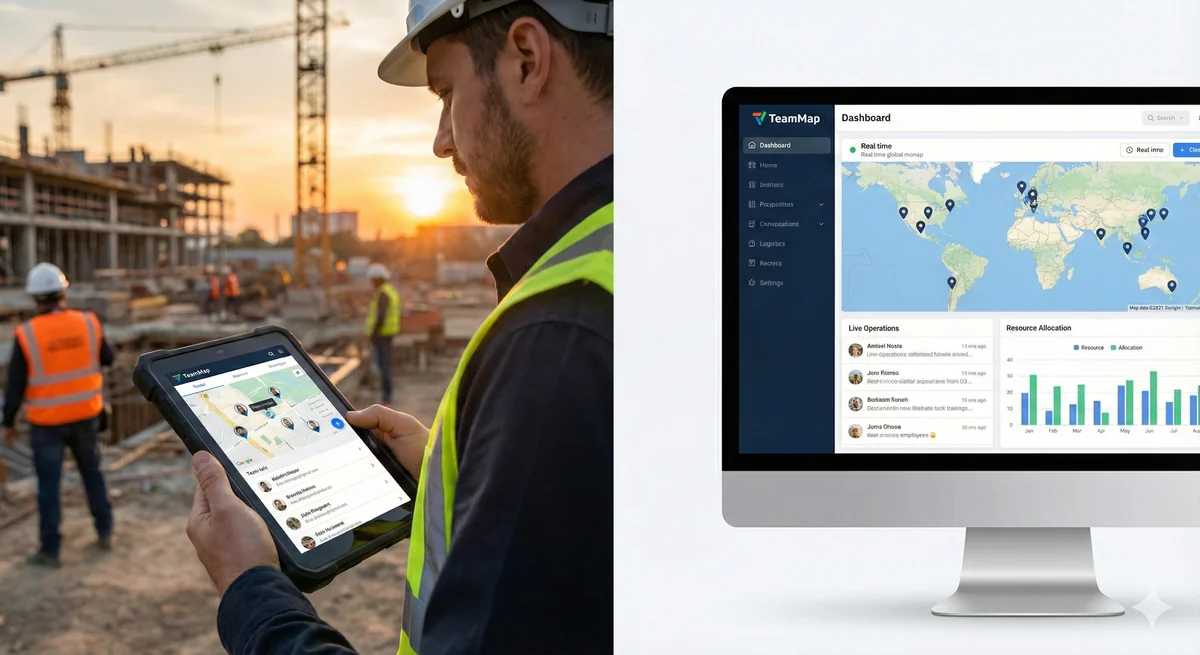
Good shift management keeps every post covered, controls overtime, and tells each guard exactly where and when to report. TeamMap handles scheduling, real-time coverage tracking, and digital handoffs in one place—so a missed shift never becomes a dead zone.
TeamMap provides digital shift scheduling with real-time coverage tracking and digital shift handoffs. This guide covers shift creation, assignment workflows, and coverage monitoring best practices.
Shift Management Fundamentals
What TeamMap Tracks
- Scheduled vs. actual shift times
- Clock-in and clock-out locations
- Coverage gaps and overlaps
- Overtime hours
- Shift swap requests
- No-shows and late arrivals
Benefits of Digital Shift Management
| Manual Process | TeamMap Solution |
|---|---|
| Paper schedules get lost | Always accessible on phone |
| Call each guard about changes | Push notifications for updates |
| Manual overtime calculation | Automatic tracking and alerts |
| No visibility into who's on site | Real-time coverage dashboard |
| Handoff notes on paper/verbal | Digital handoff in app |
Creating Shifts
Shift Template Components
| Field | Description | Example |
|---|---|---|
| Shift Name | Descriptive title | "Day Shift - Building A" |
| Start/End Time | Scheduled hours | 0600-1400 |
| Location | Site assignment | Corporate HQ |
| Position | Role/post | Front Desk, Patrol |
| Required Skills | Skills/qualifications needed | Armed, CPR |
| Minimum Staffing | Guards needed | 2 guards |
Creating a New Shift
- Open TeamMap scheduler
- Navigate to desired date/site
- Click "Add Shift"
- Select or create shift template
- Set start and end times
- Assign guard(s) or leave open
- Add notes or special instructions
- Save and publish
Recurring Shifts
For regular schedules, create recurring shifts:
- Daily (same time every day)
- Weekly (specific days each week)
- Bi-weekly (two-week rotation)
- Custom patterns
Assigning Guards to Shifts
Assignment Considerations
- Availability: Check guard's schedule and time-off
- Qualifications: Site-specific training, certifications
- Hours worked: Watch for overtime thresholds
- Preferences: Guard site preferences when possible
- Travel time: If guard has back-to-back shifts
Assignment Workflow
- Review open shifts needing coverage
- Check available guards
- Review guard qualifications and hours
- Assign guard to shift
- Guard receives notification
- Guard confirms or requests change
- Assignment finalized
Open Shift Board
For available shifts guards can claim:
- Post shift to open board
- Qualified guards see available shifts
- Guards request shifts
- Supervisor reviews and approves or rejects claim
- First qualified guard gets assignment
Clock-In and Clock-Out
Clock-In Process
- Guard arrives at site
- Opens TeamMap app
- Views assigned shift
- Taps "Clock In"
- GPS location captured automatically
- Optional: NFC scan at post for verification
- Shift officially starts
GPS Verification
Clock-in verification options:
| Setting | Description | Use Case |
|---|---|---|
| None | Clock in from anywhere | Office staff |
| Site geofence | Must be within site boundary | Most guard posts |
| Specific location | Must be at exact post | Fixed posts |
| NFC required | Must scan checkpoint tag | High-security sites |
Early/Late Clock-In Handling
- Early clock-in: Configure how early guards can clock in (typically 5-15 minutes)
- Late arrival: Alert supervisor if guard clocks in after scheduled start
- No-show: Alert if guard hasn't clocked in within grace period
Real-Time Coverage Monitoring
Coverage Dashboard
TeamMap's dashboard shows:
- All active shifts across sites
- Guards currently on duty
- Coverage status (full, under, over)
- Upcoming shift changes
- Open shifts needing coverage
Alerts and Notifications
| Alert Type | Trigger | Recipient |
|---|---|---|
| No-show | Guard hasn't clocked in | Supervisor |
| Late arrival | Clock-in after start time | Supervisor |
| Early clock-out | Left before shift end | Supervisor |
| Overtime approaching | Guard nearing OT threshold | Supervisor, Guard |
| Coverage gap | No guard assigned to shift | Scheduler |
Shift Handoffs
Digital Handoff Process
- Outgoing guard opens Shift Handoff
- Reviews and updates open items
- Documents current conditions
- Notes any ongoing incidents
- Lists equipment status
- Submits handoff report
- Incoming guard reviews before clocking in
- Incoming guard acknowledges receipt
Handoff Checklist Items
- Active incidents or situations to monitor
- Pending tasks not completed
- Visitor or contractor activity
- Equipment issues
- Maintenance requests
- Special instructions from client/supervisor
- Keys/access cards transferred
Key Takeaways
- Digital schedules are always accessible and up-to-date
- GPS verification ensures guards are on-site when clocking in
- Real-time dashboards show coverage status across all sites
- Automated alerts catch no-shows and coverage gaps quickly
- Digital handoffs ensure critical information transfers between shifts
Continue Reading
Video Analytics for Security: Beyond Basic Surveillance
AI-powered video analytics can detect intrusions, count people, and identify anomalies. This guide covers practical applications and integration strategies.
Florida Security Guard License Application: Division of Licensing Guide
Navigate the Florida Division of Licensing application process for security guards, including background checks, training providers, and processing timelines.
The 10 Best Security Guard Management Software Solutions in 2026
From enterprise platforms to mobile-first apps, we review the top security guard software options. Honest assessments of features, pricing, and who each solution works best for.