Digital Incident Reporting with TeamMap Reports: Complete Guide
Use TeamMap's reports feature to capture incidents with photos, signatures, and automatic timestamps. Includes report templates and PDF generation.

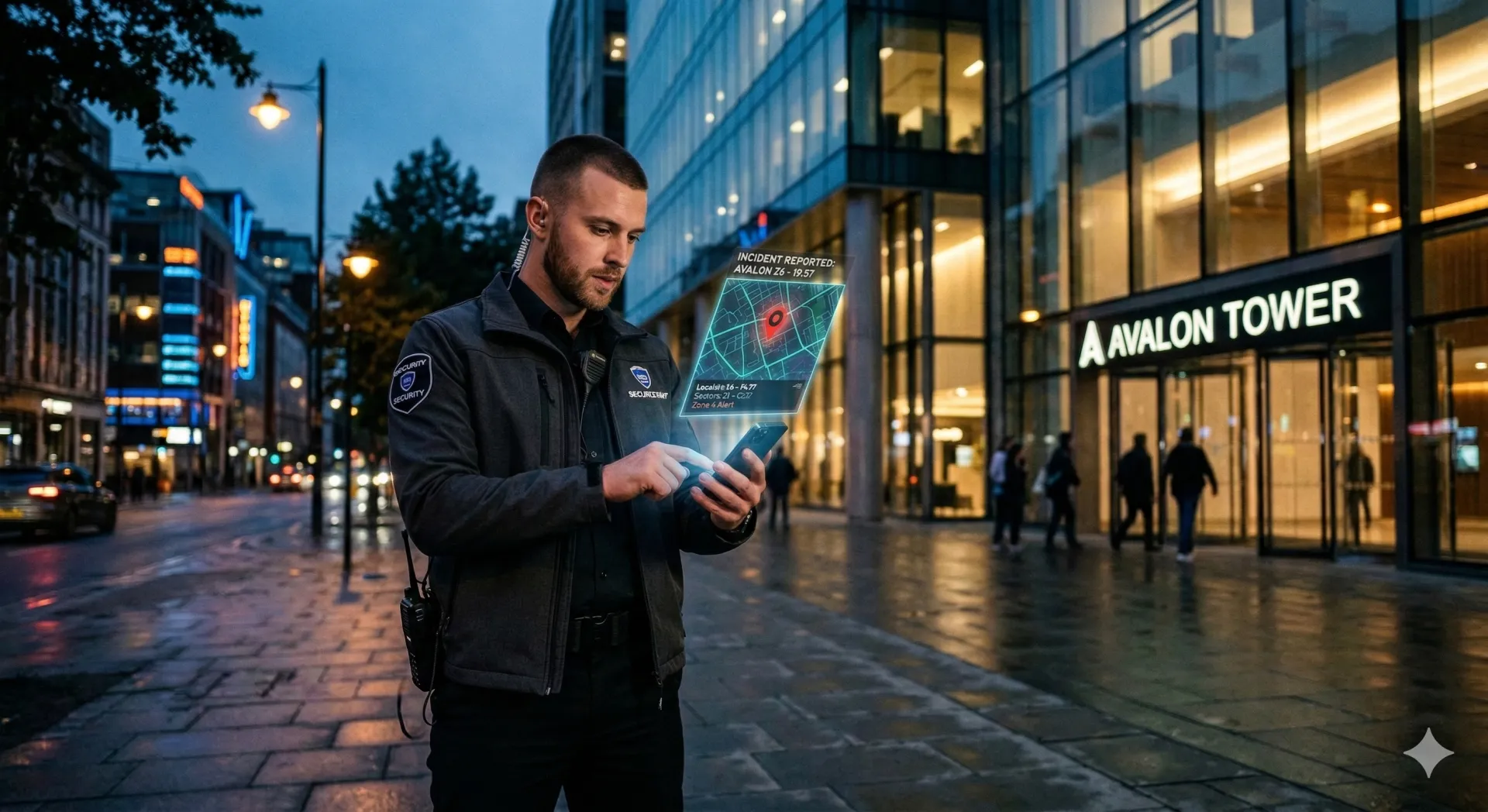
Paper incident reports are illegible, incomplete, and frequently lost. TeamMap's digital reports capture incidents with photos, timestamps, GPS locations, and digital signatures—creating professional documentation that stands up to legal scrutiny.
TeamMap's reports feature enables digital incident reporting with photos, signatures, and automatic metadata. This guide covers report templates, field procedures, and PDF report generation.
Benefits of Digital Incident Reports
Paper vs. Digital
| Factor | Paper Reports | TeamMap Digital |
|---|---|---|
| Legibility | Depends on handwriting | Always clear |
| Completeness | Fields often skipped | Required fields enforced |
| Photos | Separate attachment | Embedded in report |
| Timestamp | Self-reported | Automatic, verified |
| Location | Typed by guard | GPS coordinates |
| Submission time | End of shift or later | Immediate |
| Storage | Filing cabinets | Cloud, searchable |
Report Templates in TeamMap
Standard Incident Report Template
Essential fields for any incident report:
| Section | Fields | Auto-captured? |
|---|---|---|
| Header | Date, time, location, reporting officer | Yes |
| Incident Type | Category dropdown (theft, trespass, etc.) | No |
| Description | Narrative text field | No |
| Persons Involved | Names, descriptions, contact info | No |
| Evidence | Photos, documents | Partial (GPS in photos) |
| Actions Taken | Response checklist, narrative | No |
| Notifications | Who was contacted | No |
| Signature | Digital signature capture | Timestamped |
Creating Custom Report Templates
- Open the TeamMap web dashboard
- Navigate to the Reports section
- Click "New Report Template"
- Drag and drop field types onto the template
- Configure field properties (required, validation)
- Set template permissions
- Preview and test
- Publish template
Available Field Types
- Text (single line, multi-line)
- Number
- Date/Time picker
- Dropdown selection
- Checkbox/radio buttons
- Photo capture
- Digital signature
- GPS location
- File attachment
Field Procedures for Incident Reporting
When to Create an Incident Report
Document any of the following:
- Criminal activity (theft, vandalism, assault)
- Suspicious persons or vehicles
- Trespassing
- Medical emergencies
- Property damage
- Fire alarms or evacuations
- Safety hazards
- Accidents or injuries
- Policy violations
- Unusual occurrences
- Any event a client might ask about later
On-Scene Documentation Steps
- Ensure safety first—don't document until scene is secure
- Open TeamMap Reports—select appropriate template
- Capture photos immediately—before scene changes
- Interview witnesses—record names and statements
- Complete all fields—don't skip "optional" info
- Review for accuracy—check facts before submitting
- Obtain signatures—if required
- Submit report—immediate submission is best
Writing Effective Incident Narratives
Remember: Your report may be read by police, lawyers, insurance adjusters, and judges. Write as if it will be exhibit A in court.
The 5 W's + H Framework
- Who was involved? (Names, descriptions)
- What happened? (Actions, sequence of events)
- When did it happen? (Specific times)
- Where did it occur? (Specific location)
- Why did it happen? (If known—don't speculate)
- How did it happen? (Method, means)
Writing Best Practices
- Use objective language (facts, not opinions)
- Be specific with times and locations
- Describe what you observed, not what you assumed
- Include direct quotes when possible
- Avoid jargon and abbreviations
- Write in chronological order
Example: Poor vs. Good Narrative
Poor: "Caught a guy stealing. Stopped him and got the stuff back. Called cops."
Good: "At approximately 1423 hours, I observed a white male, approximately 25-30 years old, 5'10", wearing a red jacket and blue jeans, place two bottles of wine inside his backpack near the beverage aisle. I approached the individual at the store exit and identified myself as security. I asked him to return to the store, which he did voluntarily. The subject removed two bottles of Merlot (value $24.99 each) from his backpack and returned them to me. Store manager Jane Smith was notified. Police were called at 1428 hours. Officer Martinez #4521 arrived at 1445 hours."
Photo Documentation
What to Photograph
- Overall scene (wide shot)
- Specific damage or evidence (close-ups)
- Persons involved (if consenting or public area)
- Vehicles (including license plates)
- Environmental conditions
- Signage relevant to incident
- Serial numbers on items
Photo Best Practices
- Take multiple angles
- Include reference objects for scale
- Ensure good lighting
- Don't use filters or editing
- Include date/time stamps (TeamMap adds automatically)
PDF Report Generation
Automatic PDF Creation
TeamMap automatically generates professional PDFs from submitted reports. PDFs include:
- Company header and branding
- All form data in formatted layout
- Embedded photos
- Digital signatures
- GPS coordinates and map snippet
- Automatic timestamp
- Report ID number
Sharing Reports
- Email PDF directly from TeamMap
- Share link to secure online version
- Download for offline storage
- Attach to incident records
Report Review and Quality Control
Supervisor Review Checklist
- All required fields completed?
- Narrative follows 5 W's + H?
- Photos support narrative?
- Times and locations specific?
- Proper notifications made?
- Grammar and spelling acceptable?
- Follow-up actions documented?
Common Errors to Catch
- Time inconsistencies
- Missing witness information
- Vague descriptions
- Opinions stated as facts
- Missing photos of key evidence
Key Takeaways
- Digital reports are more complete, legible, and secure than paper
- Create custom templates for different incident types
- Document scenes thoroughly with photos and detailed narratives
- Write reports as if they'll be used in court
- Automatic PDF generation creates professional client reports
Continue Reading

Video Analytics for Security: Beyond Basic Surveillance
AI-powered video analytics can detect intrusions, count people, and identify anomalies. This guide covers practical applications and integration strategies.
Florida Security Guard License Application: Division of Licensing Guide
Navigate the Florida Division of Licensing application process for security guards, including background checks, training providers, and processing timelines.

The 10 Best Security Guard Management Software Solutions in 2026
From enterprise platforms to mobile-first apps, we review the top security guard software options. Honest assessments of features, pricing, and who each solution works best for.